中文

Contact us
tel:15797766463
mail:business@seeshiontech.com
Update time : 2019-11-05 17:32:27
When we doing color grading in After Effects, usually we need to add multiple color correction effects to achieve the final result we want.
After Effects provide dozens of color correction effects, and there are also a lot of third party color correction plugins. It\'s not possible for VE to support all of those plugins. And it is also not efficient to add multiple color grading effects to a layer.
To solve this problem and provide powerful color grading functionalities for designers, VE added an plugin called - VE Look Up Image.
The way most color correction effect works is they make change to each pixel to change the look of the image. And for VE Look Up Image, the way it works is takes an look up image file as a look up table, and changes the value of each pixel of the source image according the look up image.
So, designers can just create their color grading looks use other plugins and convert the result to an look up image. Then designers can just replace all other color correction effects on the layer with a single VE Look Up Image.
In this section, we explain the detail of using VE Look Up Image. You can download a example project from here.
Also, if you have already have installed VE Look Up Image plugin, you can download it from here.
Create your color correction using normal color correction effects Well, you should be very familiar with this step, you can use all the color correction effects you want to create your color correction design.
Convert your color correction result to a look up image
Now this step is what you need to careful about.
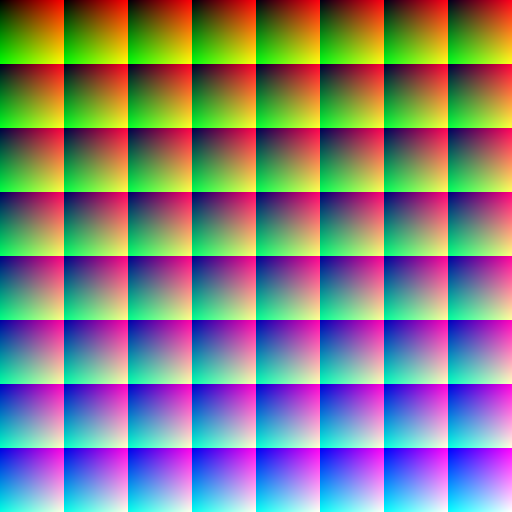
First of all, you need a standard look up image, which is a 512 512 image, and you can download it from here.
And then, you need to import the look up image into After Effects and create a new comp with the same size as the look up image, which is 512 512. Then add the look up image as a new layer into the comp.
Then you need to copy all color correction effects you applied on the source layer to the look up image layer.
Then can render the look up comp as an image file and use the result as the look up image. By the way, is you added animation on your color correction effects, then you can render the look up comp as a video file too.
Replace color correction effects with VE Look Up Image
Now you have your look up image, you can import it back to After Effects, and delete the original color correction effects you have on your source layer and then add the VE Look Up Image effect to your source layer.
Then you can set the look up image as the input parameter of the VE Look Up Image effect. And that\'s it.
You can only store your color grading info in look up image
As pointed on from above, VE look up image is only used to do color correction and the look up image can only store color look up infos.
So you should not store any position dependent color changing effects in it. For example, if you add a vignette effect to your source layer, you can not convert it to VE Look Up Image, because the vignette effect changes the color of your source image by the position of each pixel.
With this said, you should not store blur or other distortion effects in VE Look Up Image.
Do not modify the size or lower the resolution of the look up image
The standard look up image is a 512 * 512 image, you should not change the size of the look up image. changing the size will cause it losing pixel infos, and that will cause the color correction result wrong.
 账号信息
账号信息 我的产品
我的产品 退出登录
退出登录